
How to Open an .md File on Windows: 4 Practical Options
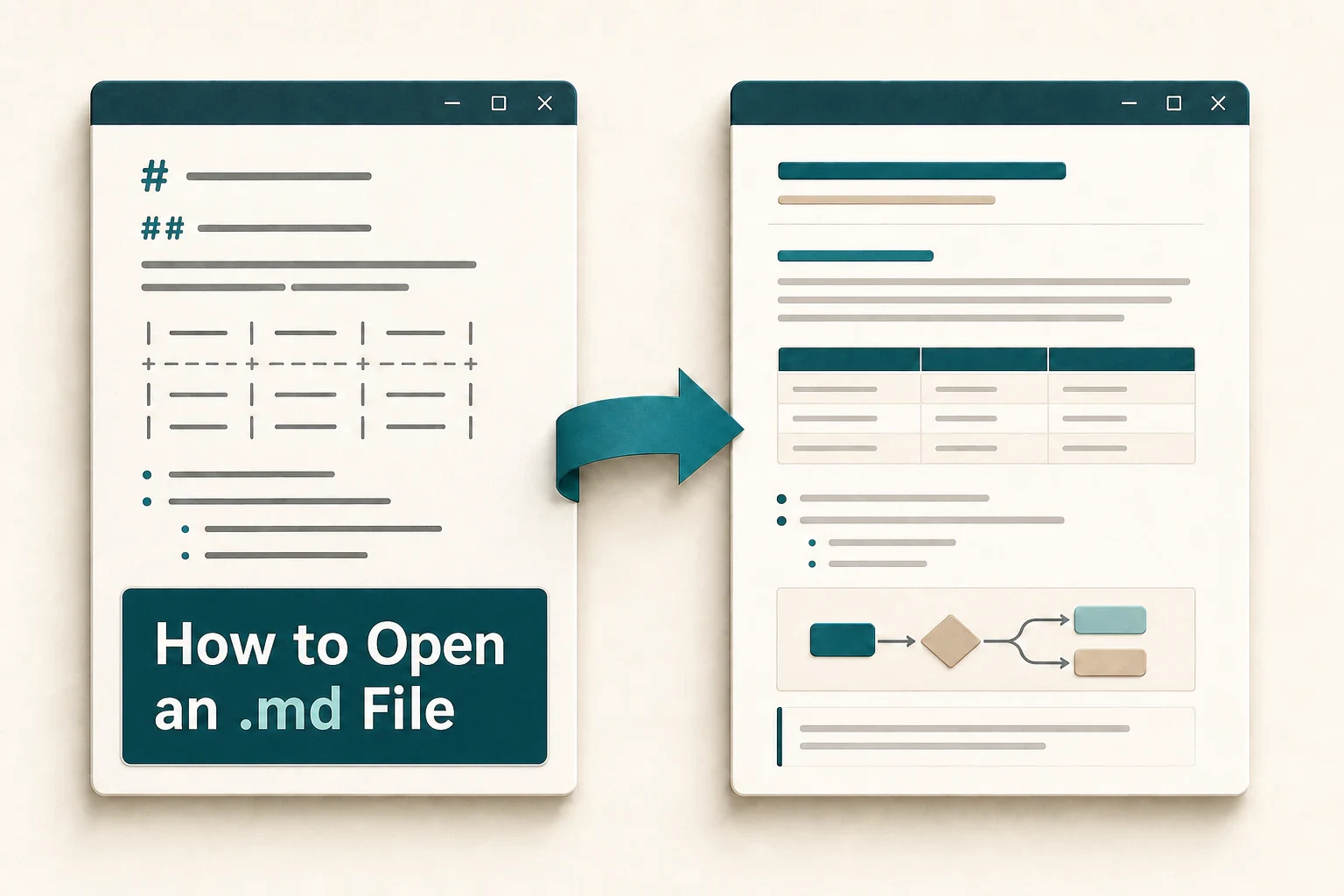
You saved an answer from an AI tool and received a file ending in .md. Or someone sent you an .md file that would not open when you double-clicked it. When you tried Notepad, the file opened—but the #, |, and other symbols made it difficult to scan.
This guide explains four ways to open an .md file on Windows. The right choice depends on whether you want to check the text, read and print a formatted document, or edit its contents. I develop a Markdown viewer, and I tested the behavior described in this guide with real files and apps.
The English interface images are simplified recreations based on the Windows screens tested for this guide. Labels and layouts may vary with your version of Windows or the app.
What is an .md file? Its contents are plain text
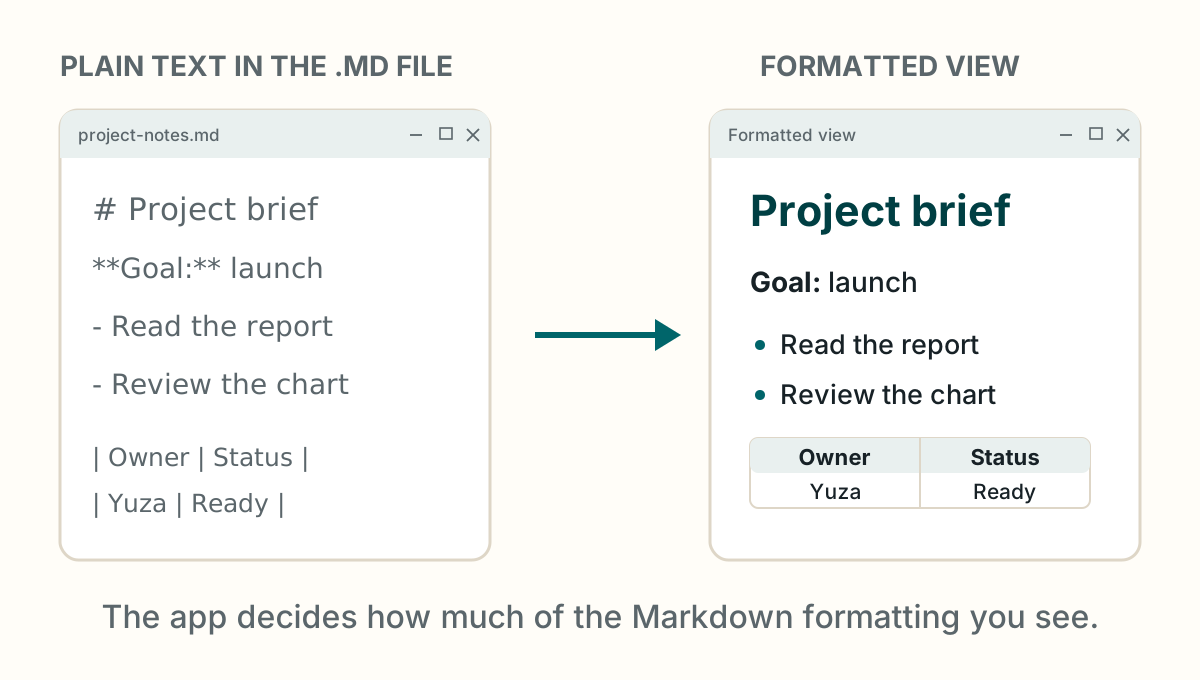
The .md extension identifies a text file written in Markdown. Markdown uses characters such as # Heading, * list item, and | table | to describe the structure of a document.
Markdown has long been used for technical documentation. It is now more common outside software teams because tools such as ChatGPT and Claude often produce reports, specifications, and meeting notes in Markdown.
ChatGPT or Claude gave me a .md file — how do I open it?
Save the file to your Windows PC without changing its .md extension. Use Notepad when you only need to check the text, a Markdown viewer when you want a formatted reading view, or an editor when you need to change the content. The four options below show each approach.
Two facts explain why the same file can look different from one app to another:
- An .md file contains text, so any text editor can open it.
- The app decides which headings, tables, code blocks, diagrams, and formulas it can format.
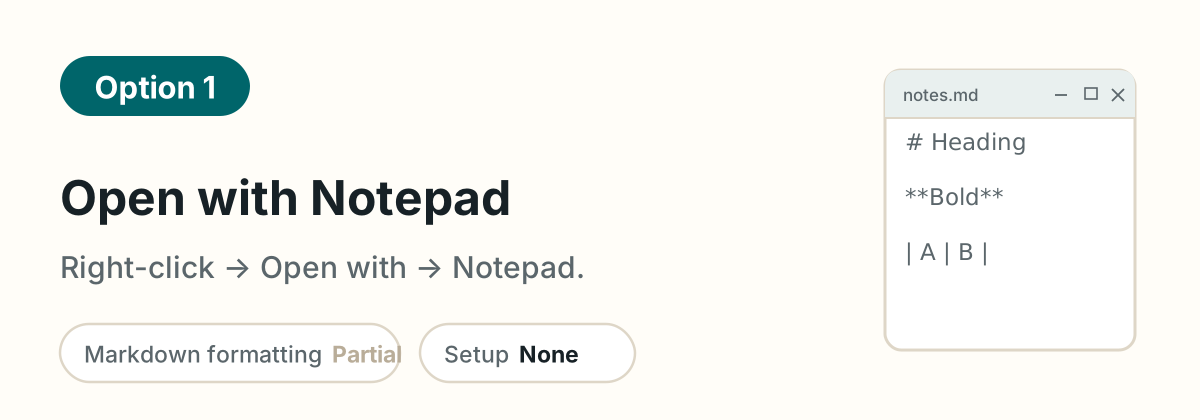
Option 1: Open the .md file with Notepad
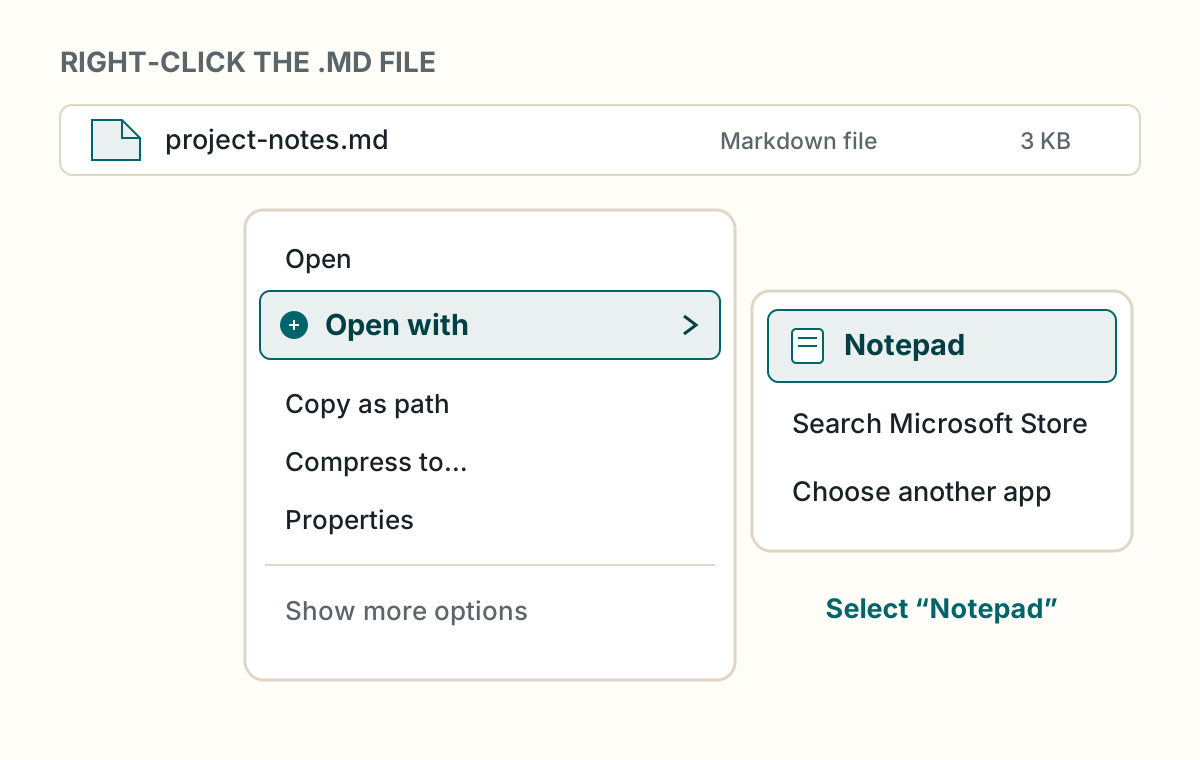
- Right-click the .md file.
- Select Open with, and then select Notepad.
Notepad lets you inspect the file without installing another app. What you see depends on the version of Notepad installed on your PC.
Can Windows Notepad display Markdown formatting?
Newer versions of Notepad on Windows 11 can show Markdown with formatting. Microsoft began rolling out lightweight formatting in 2025 and has continued to expand its Markdown support. In Notepad 11.2605.29.0, the version tested for this guide, headings, bold text, lists, links, and tables were formatted.
If you see Markdown characters when the file opens, select View > Markdown > Formatted.
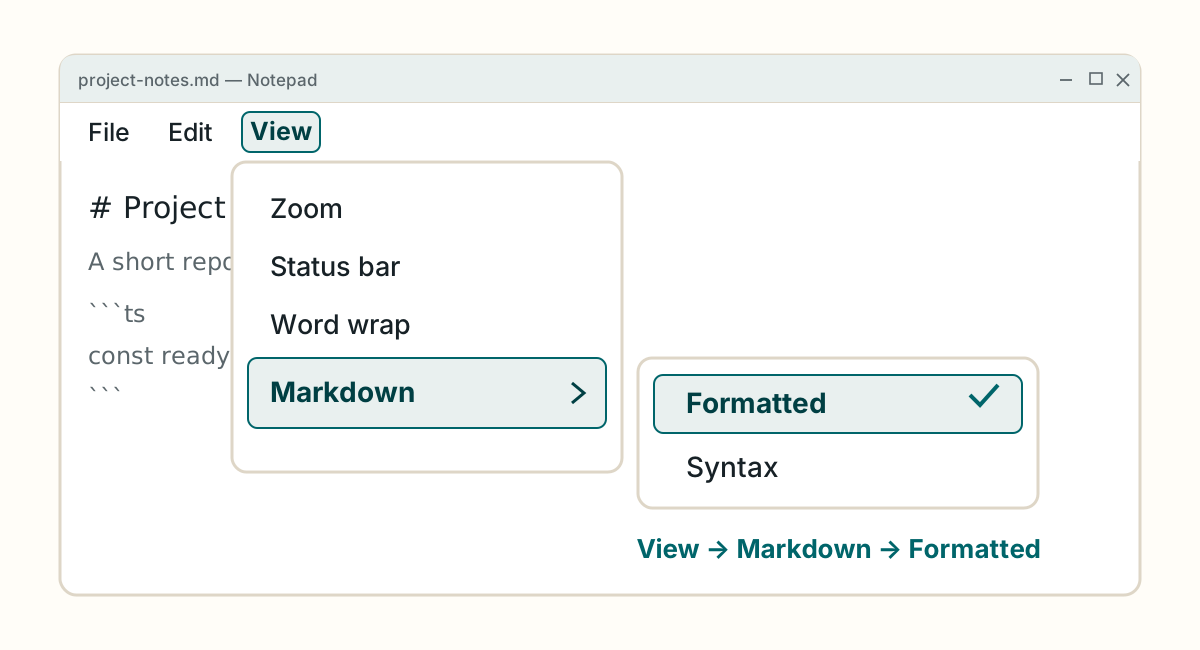
Windows 10 and older versions of Notepad show the Markdown source as plain text. If the formatting option is missing, try updating Notepad. If it still does not appear, use a dedicated viewer.
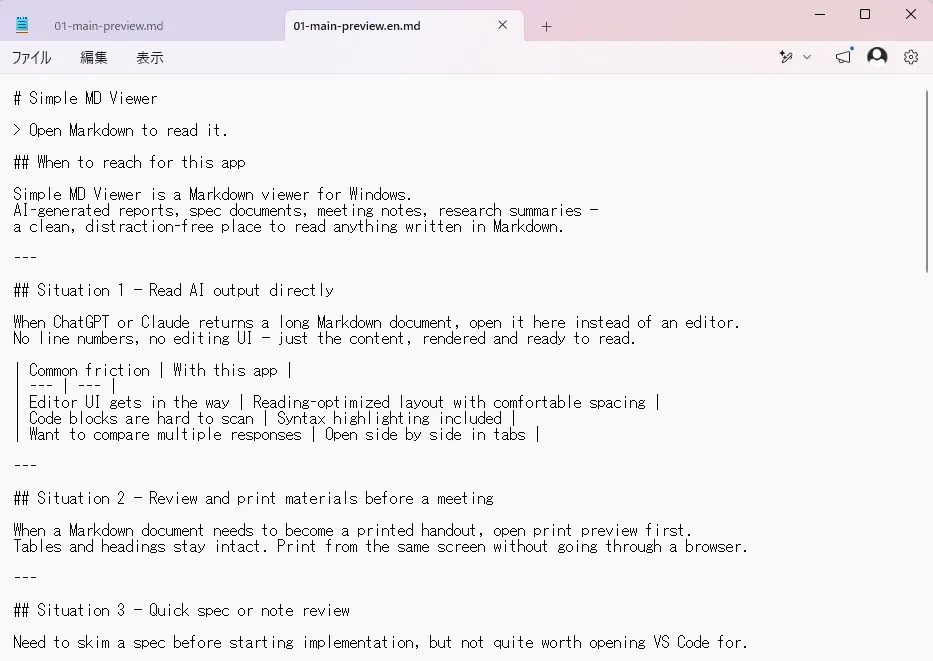
Notepad still has limitations. It does not fully render code blocks, Mermaid diagrams, or math expressions. When a file includes unsupported syntax, Notepad may warn you before switching to the formatted view.
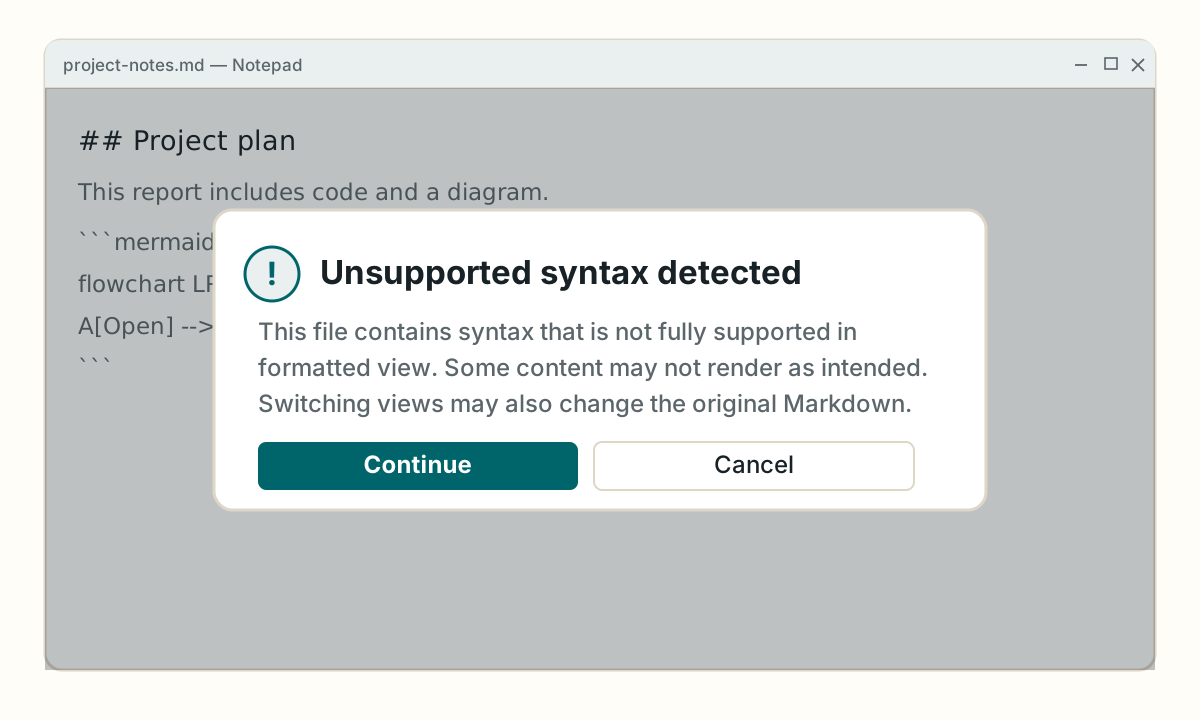
The warning explains that switching to the formatted view may change the original content. If you only want to read the file and must preserve it exactly, select Cancel and open it in another app.
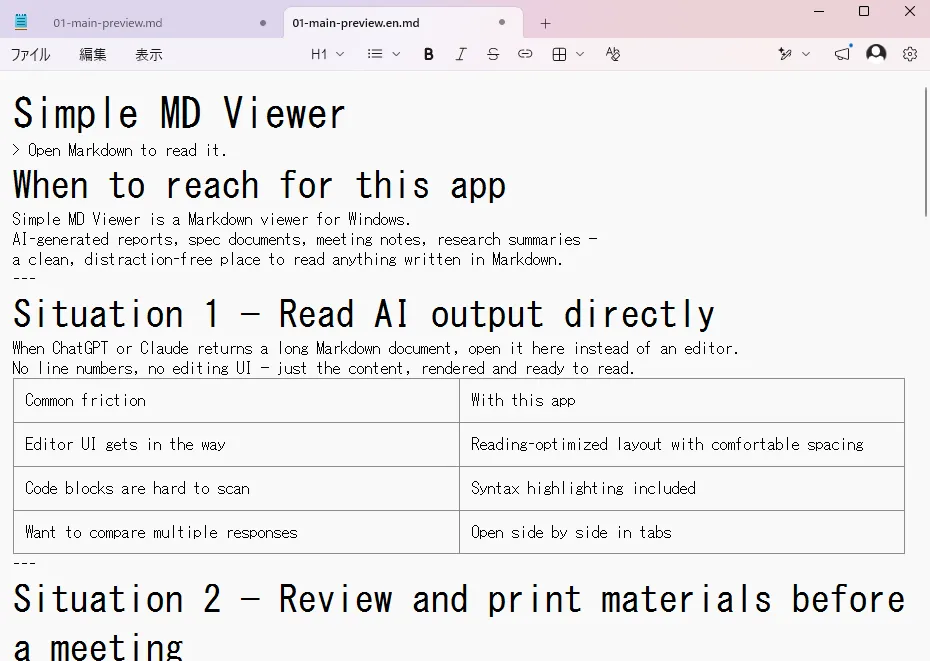
Notepad is enough when you only need a quick look at the text. Use the next option when the document contains code or diagrams, or when you want a cleaner reading view.
Option 2: View the .md file with a Markdown viewer
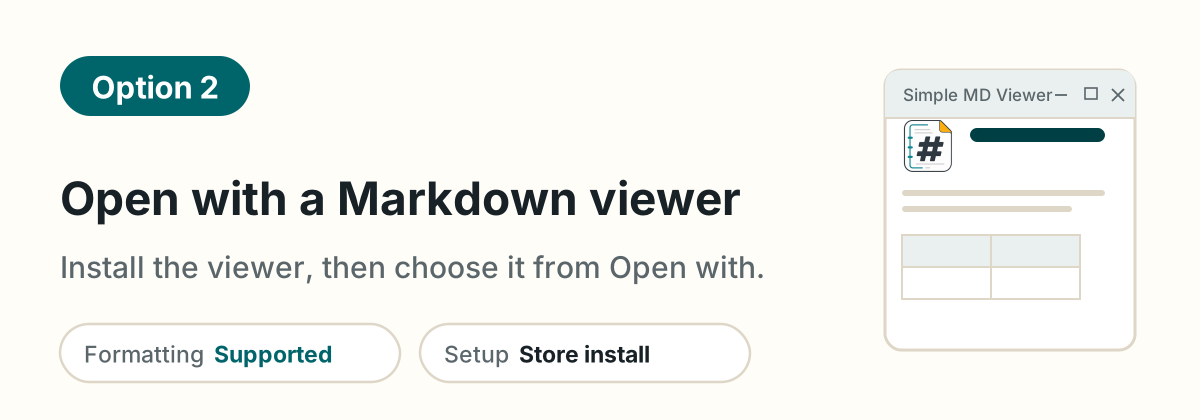
How do I view an .md file without editing it?
If you need to read the document rather than edit it, a dedicated Markdown viewer keeps the interface focused on the content. The steps below use Simple MD Viewer, a Markdown viewer for Windows, which I develop. Its core reading features are free.
-
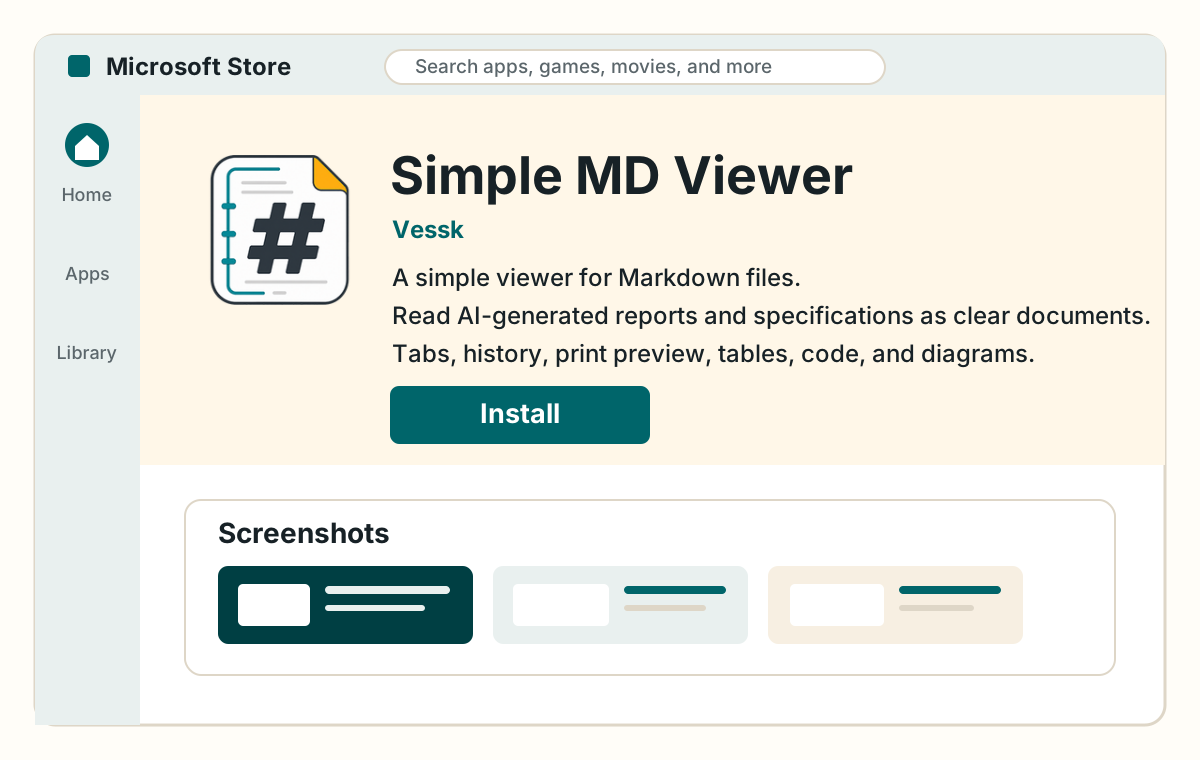
Search for Simple MD Viewer in Microsoft Store, and select Install.
-
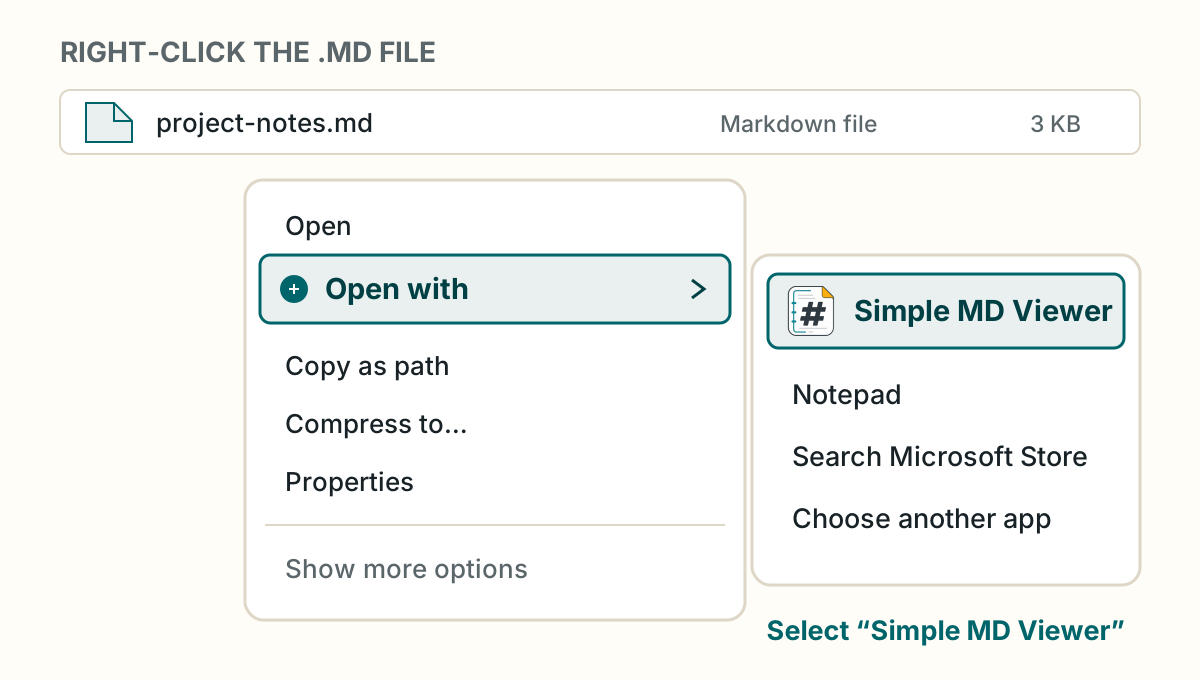
Right-click the .md file, and select Open with > Simple MD Viewer.
-
The file opens with its headings, tables, and other supported elements formatted.
To open .md files with a double-click in the future, right-click the file and select Open with > Choose another app. Select Simple MD Viewer, and then select Always.
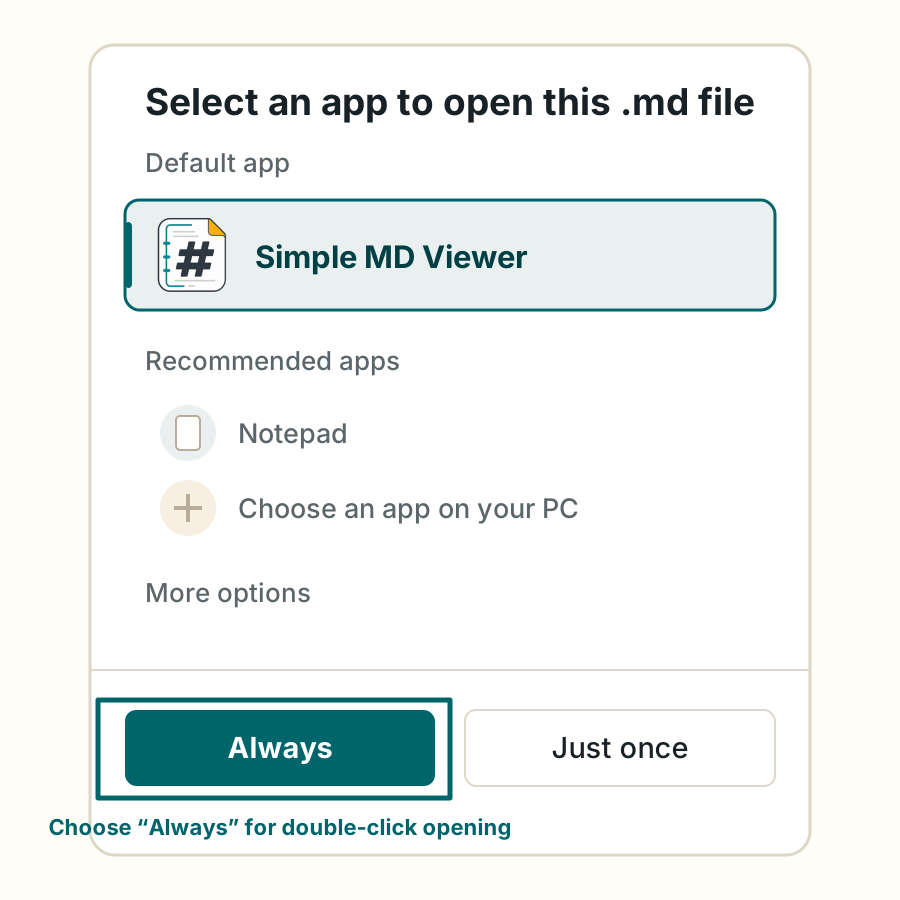
Simple MD Viewer formats headings, tables, and code blocks, and renders supported Mermaid diagrams and LaTeX-style math.
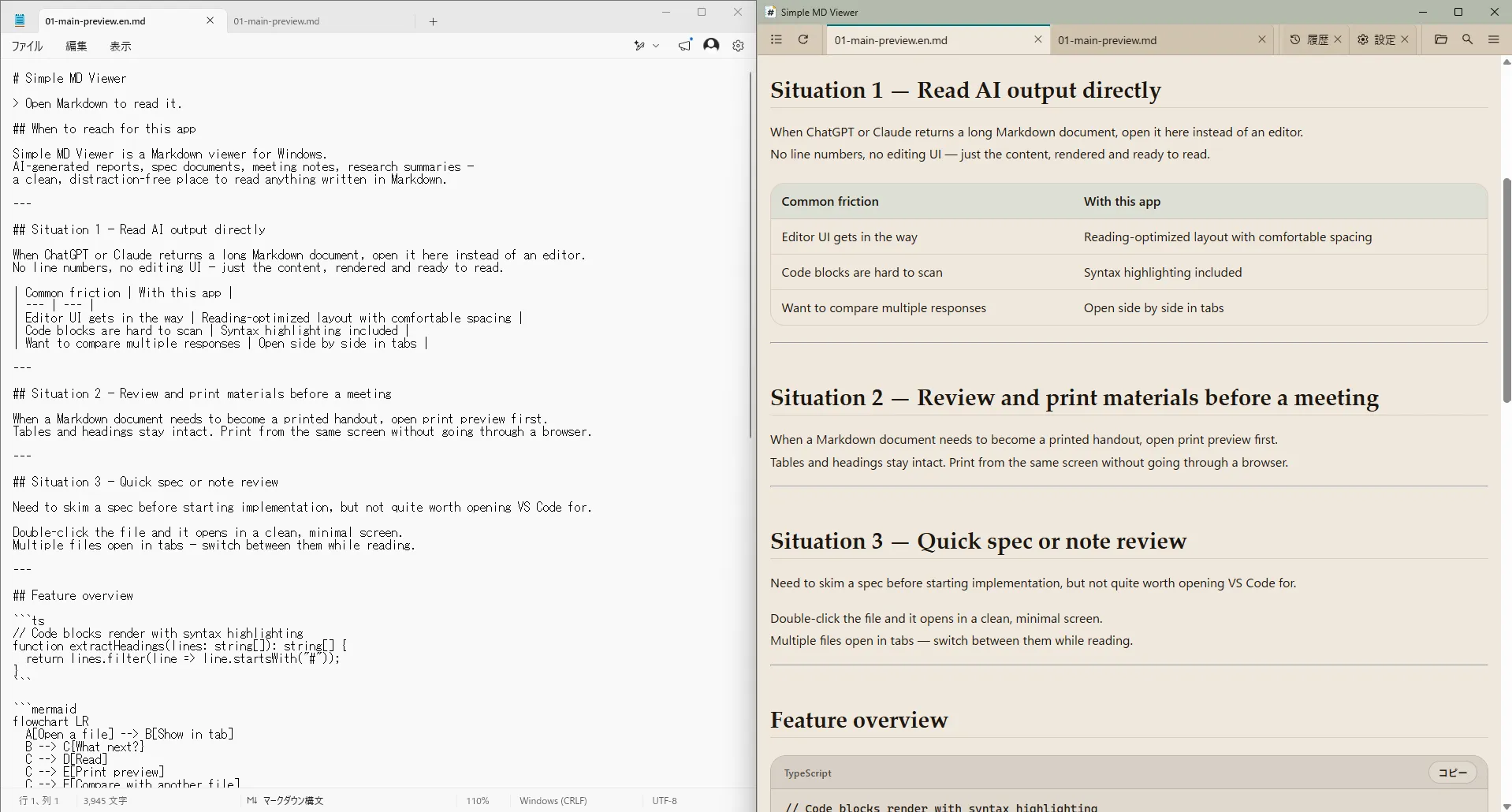
You can open several files in tabs and switch between them while you read. Print preview lets you check page breaks before printing, so you can review an AI-generated report and prepare a paper handout in the same app.
Simple MD Viewer is designed for reading—especially for reviewing Markdown produced by AI tools—so it does not include editing tools. This keeps the interface focused and lightweight. If you need to change the document, use an editor from option 4.
If you are comfortable with the command line, you can also install the app with winget:
winget install --id 9N9BN2N257S0 -s msstoreIf winget asks you to accept Microsoft Store source terms, review the displayed terms before continuing.
Option 3: Open the .md file with a browser extension
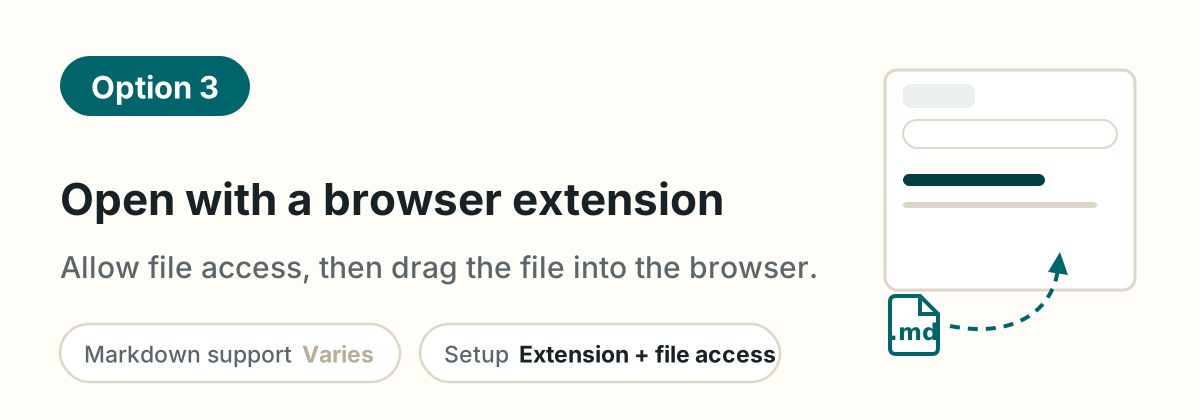
A Markdown viewer extension for Chrome or Edge can display an .md file that you drag into the browser.
- Search the browser’s extension store for Markdown Viewer, and install an extension you trust.
- In the extension settings, turn on Allow access to file URLs.
- Drag the .md file into the browser window.
This setting lets the extension access local files that you open in the browser. Check the publisher, number of users, reviews, and requested permissions before enabling it.
Markdown support varies by extension. Managed work PCs may also prevent you from installing browser extensions.
Option 4: Open the .md file with VS Code or another editor
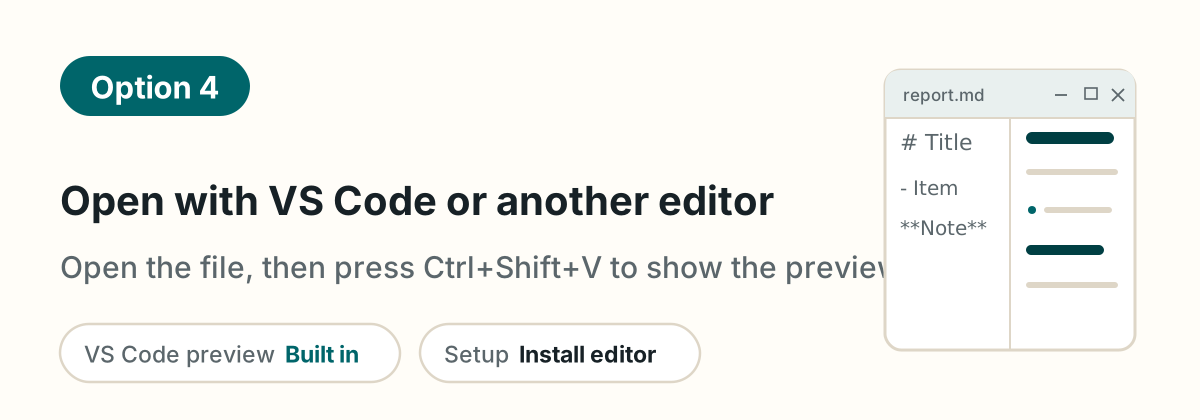
Use an editor such as Visual Studio Code (VS Code) when you need to change the Markdown. Open the .md file in VS Code and press Ctrl+Shift+V to switch to the formatted preview.
The current built-in Markdown preview in VS Code supports headings, tables, code, Mermaid diagrams, and math. You can place the editor and preview side by side to see changes as you work.
Can LibreOffice open an .md file?
LibreOffice 26.2 added Markdown import and export. In Writer, choose File > Open, select the .md file, and edit it as a Writer document. Formatting support differs between apps, so check documents that rely on extensions such as Mermaid diagrams or LaTeX-style math before saving changes.
VS Code includes many tools intended for software development, so it can feel busy when all you want to do is read. Choose a dedicated viewer for reading, a browser extension when you cannot install a desktop app but are allowed to add an extension, and VS Code when you need to edit.
Which option should you choose?
Use this flowchart to narrow down the choice.
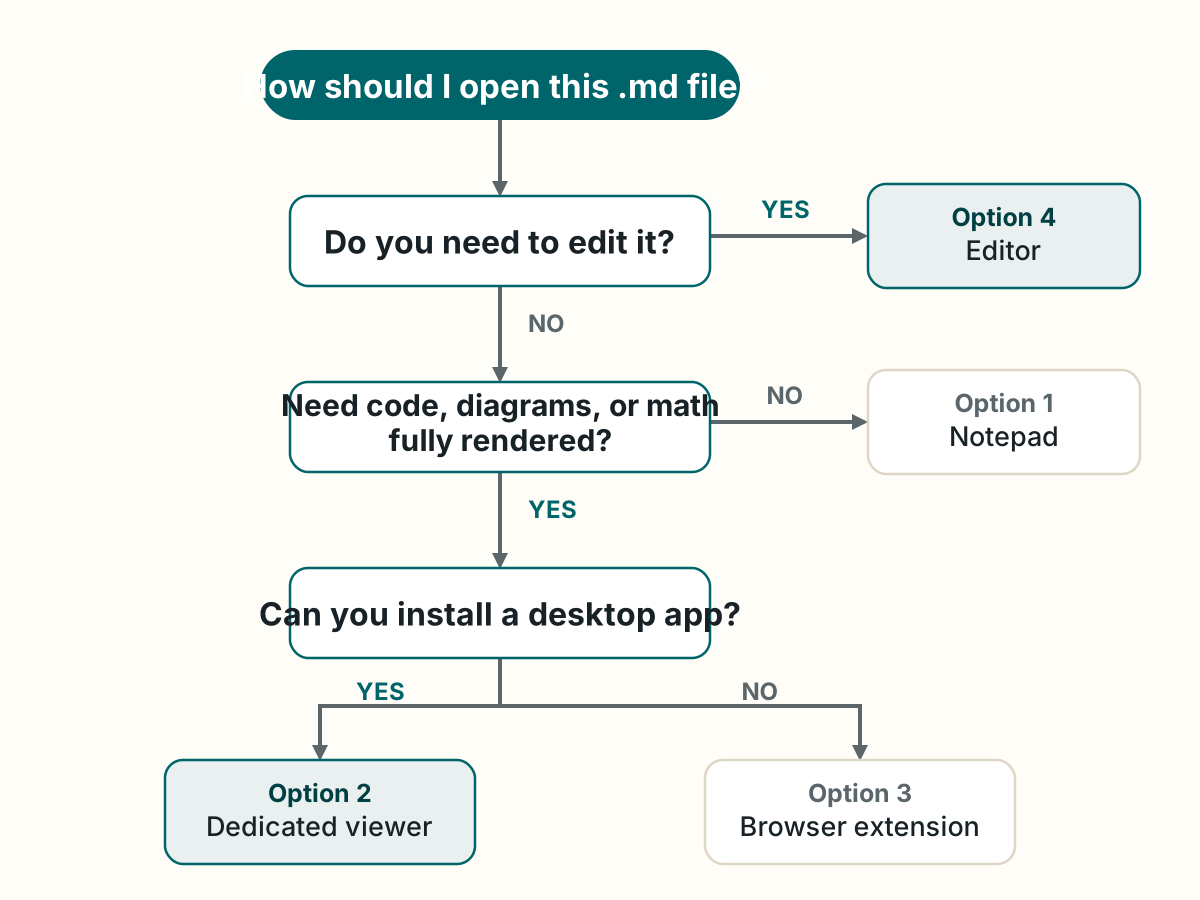
The table shows the main differences.
| Option | Best for | Formatted view | Setup |
|---|---|---|---|
| Notepad | Checking the text now | Partial. Support varies by version; code, diagrams, and math are not fully formatted | None |
| Simple MD Viewer | Reading and printing documents | Tables, code, supported Mermaid diagrams, and math | Install from Microsoft Store |
| Browser extension | Reading without another desktop app | Varies by extension | Install the extension and allow local file access |
| Editor, such as VS Code | Editing and writing | Built-in preview supports tables, code, Mermaid diagrams, and math | Install the editor; some familiarity with its interface helps |
What to check when an .md file will not open correctly
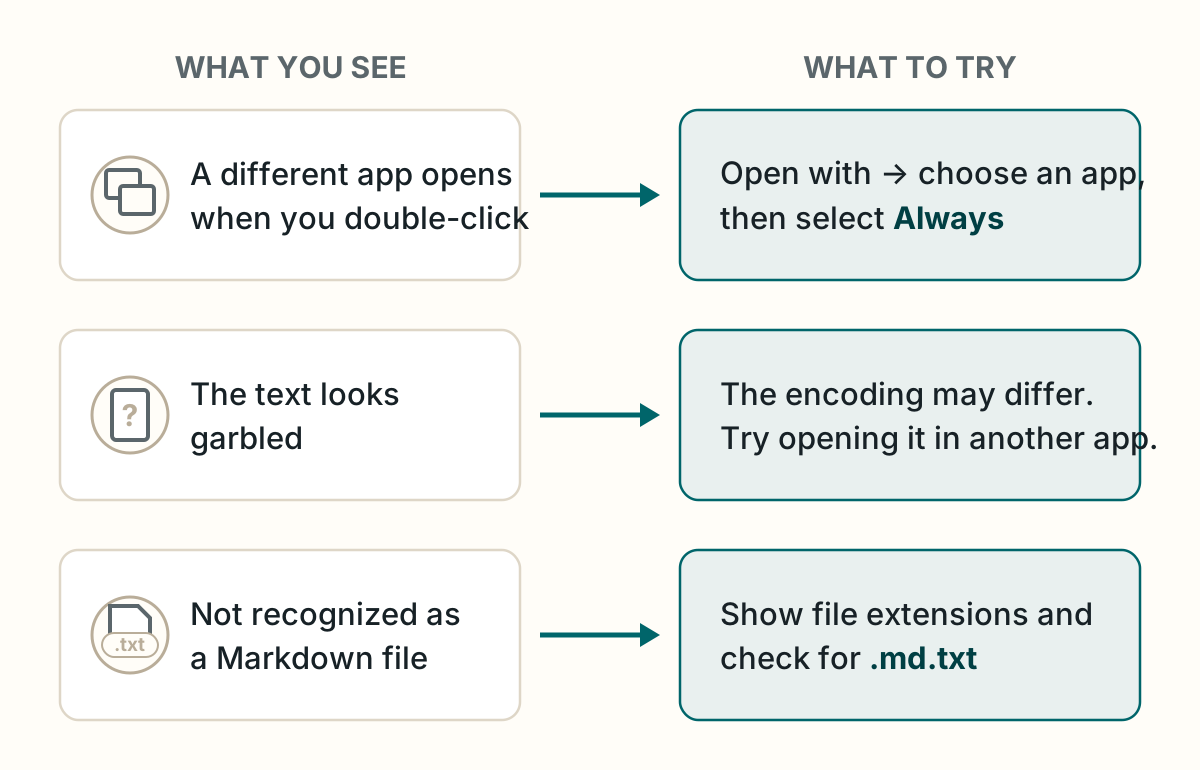
- The wrong app opens when you double-click: Change the default app. Right-click the .md file, select Open with > Choose another app, choose the app you want, and select Always.
- The text looks garbled: The file may use an older text encoding instead of UTF-8. Try another app, or ask the sender to export the file as UTF-8.
- Windows does not recognize it as a Markdown file: The full name may be
report.md.txt. In File Explorer, turn on View > Show > File name extensions, and check the actual extension.
Summary
- Use Notepad when you need to check the text immediately.
- Use a dedicated viewer when you want a clean reading or printing view.
- Use VS Code or another editor when you need to change the file.
An .md file is text, so opening the contents is straightforward. Being able to open the file is not the same as seeing every table, code block, or diagram in a readable layout. Once you choose an app for the way you work, the next Markdown file you receive will be much easier to handle.
FAQ
Can I open an .md file in Word or Notepad?
Yes. Notepad can open .md files. The desktop version of Word can also open one as text, but it does not render Markdown as a formatted document. Newer versions of Notepad can format headings, lists, links, and tables, although support varies by version. A Markdown viewer gives you a more consistent reading view for documents that include code, diagrams, or math.
Is it safe to open an .md file?
An .md file is normally a text file, not an app that runs by itself. The app that displays it, links in the document, and externally loaded images still require the usual care. Install viewers from a trusted source such as Microsoft Store, and do not open links you do not trust.
Can I open an .md file on an iPhone or Android phone?
Yes. Apps for both iPhone and Android can open Markdown files. This guide covers Windows, and Simple MD Viewer—the app used in one of the options—is available for Windows only.
Why does a different app open when I double-click an .md file?
The default app for .md files is set to another program. Right-click the file, select Open with > Choose another app, select the app you want, and then select Always. Windows will use that app the next time you double-click an .md file.
How do I open an .md file that ChatGPT or Claude created?
Save the file to your Windows PC, then open it with Notepad for a quick text check or a Markdown viewer for a formatted reading view. Use an editor such as VS Code if you need to change the content. You do not need to rename or convert the .md file first.
What is the best way to view an .md file on Windows without editing it?
Use a dedicated Markdown viewer when you want a clean reading and printing view without editing controls. Notepad is convenient for a quick check, while a viewer is more suitable for files containing tables, code blocks, supported diagrams, or math.
Can LibreOffice open and edit .md files?
Yes. LibreOffice Writer 26.2 and later can open and save Markdown files. Choose File > Open and select the .md file. Formatting can differ for Markdown extensions such as diagrams or math, so check the result before saving changes.
Why does an .md file show #, *, and | symbols?
Those characters are Markdown syntax for headings, lists, and tables. You are looking at the source text rather than a formatted view. Switch to Notepad's formatted Markdown view if your version supports it, or open the file in a Markdown viewer.